

Open Link
Open a link in an in-app browser.
The Open Link action allows you to link a component to an external webpage.
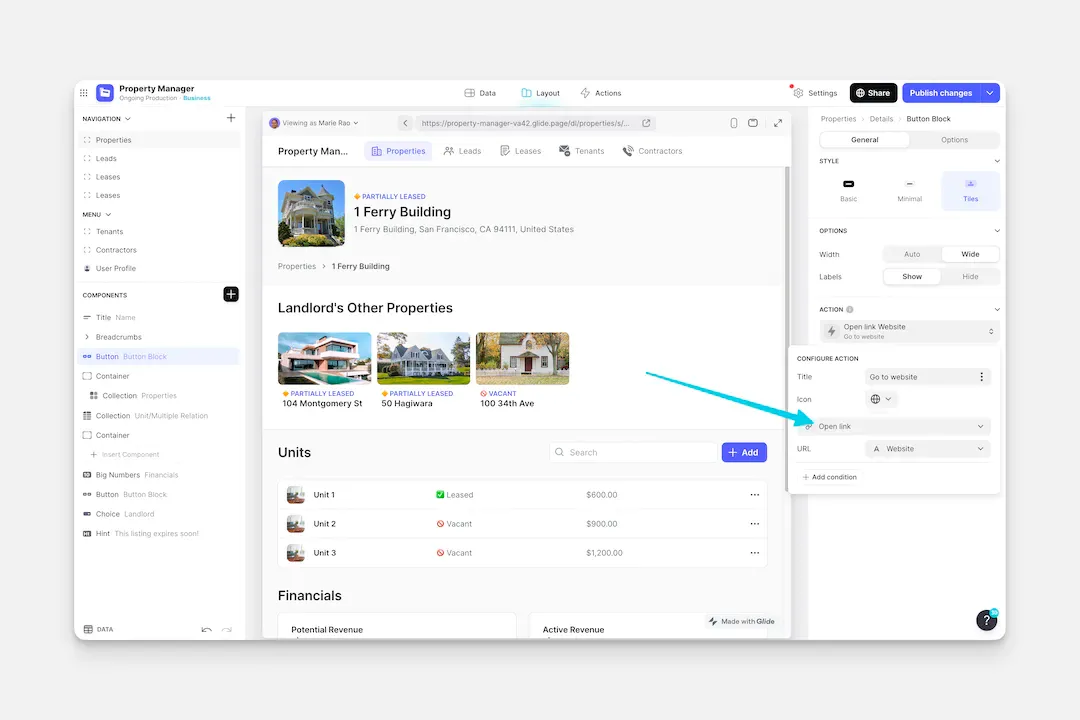
The Open Link action can be used as an action in the components of your app (like Buttons, Collections, and much more), or it can be triggered along with other actions as part of a Workflow.
Setting up the Open Link Action
Layout Editor
Workflow Editor
Click on the plus (+) sign in the Components panel and select the Component you want to trigger the action.
In the General tab on the right side of the Layout Editor, navigate to the Actions section and select Open Link.
Check the Introduction to Actions page for a full list of components that can be used to trigger actions.