

Show Detail Screen
The Show Detail Screen action takes the user to a screen with the data for the particular Collection item or row. By default, Collection items link to their Detail Screen.
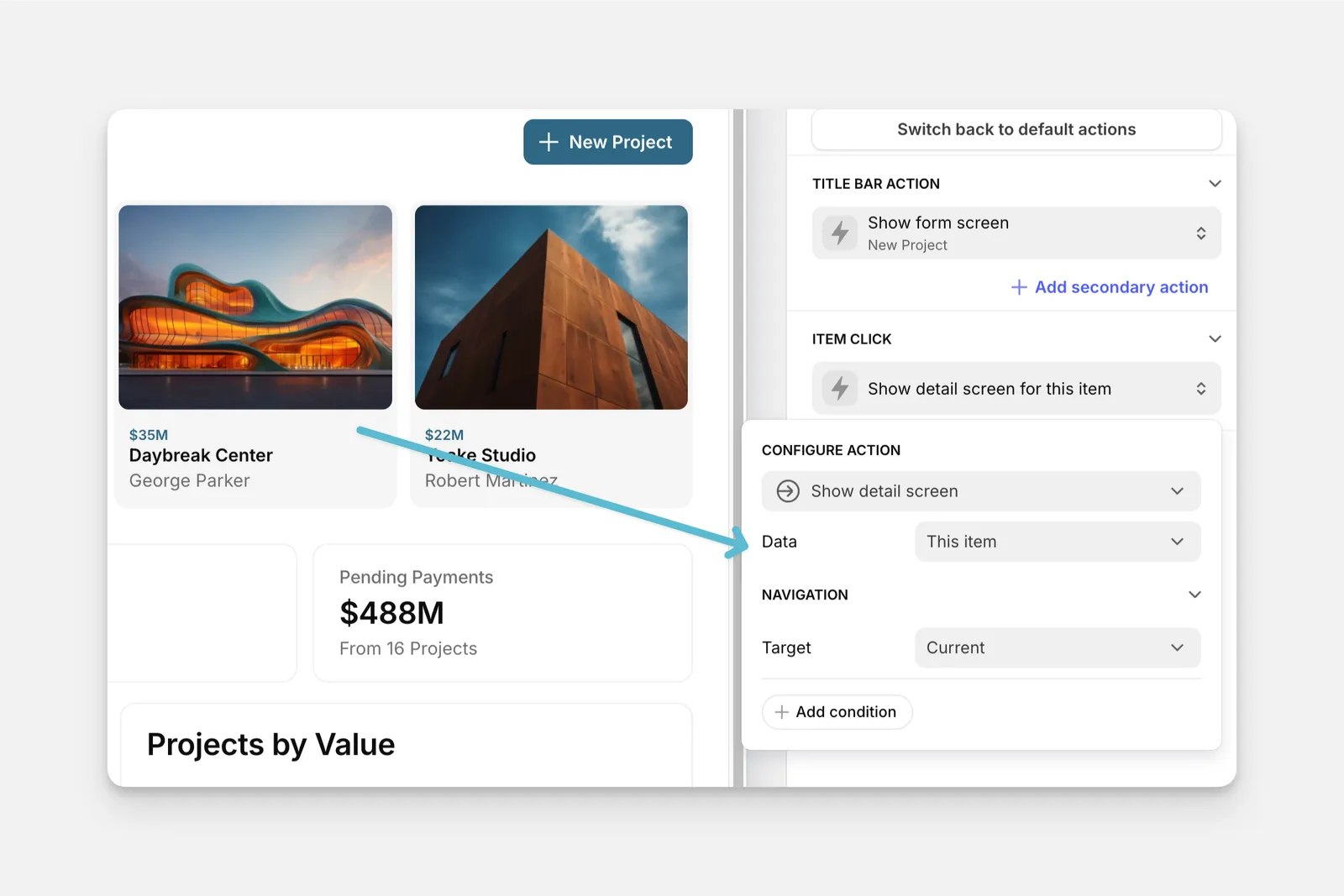
The Show Detail Screen action can be used as an action in the components of your app (like Buttons, Collections, and much more), or it can be triggered along with other actions as part of a Workflow.
Setting up the Show Detail Screen Action
Layout Editor
Workflow Editor
Click on the plus (+) sign in the Components panel and select the Component you want to trigger the action.
In the General tab on the right side of the Layout Editor, navigate to the Actions section. You may need to select Enable advanced actions.
In the Data field, select the collection item for which to show details. For the collection item that the user clicks on, select This item.
Show Detail Screen Use Case
Show Details About a Location Item
While the Show Detail Screen action is most commonly found and often used on collection items, you can also use it on other components, such as the Map Component. Clicking a pin on a map will show basic details (that you can choose while setting up the component) about that location as a pop up. If there are more details you want users to see, you can add a Show Detail Screen item to the map.
For example, if you’re building an app for a property rental agency, you might have a wide range of information about listed properties. You can include the most important information on the map component itself, including:
- the address
- monthly rent
- number of bedrooms and bathrooms
- photo of the property
But the listing will also include other important information, such as the property type, whether parking or in-unit laundry are available, the property’s age, schools nearby, the agent’s contact details, and more. To show users this additional information, you can set up a Show Detail Screen action on the map component by following the steps above. Now, when users click on the basic information that pops up from a map pin, they are taken to the detail screen for that collection item.
Check the Introduction to Actions page for a full list of components that can be used to trigger actions.